File Explorer
Browse, edit, upload, search and delete files on a Linux server with HeadlessOS File Explorer. Works over SFTP, with a code editor and Recycle Bin.
File Explorer works with files on your server through SFTP, the file transfer part of SSH. It needs no extra tools on the server. Copy, search and Empty Recycle Bin run cp, find and rm over SSH. The command palette lists the app as Files.
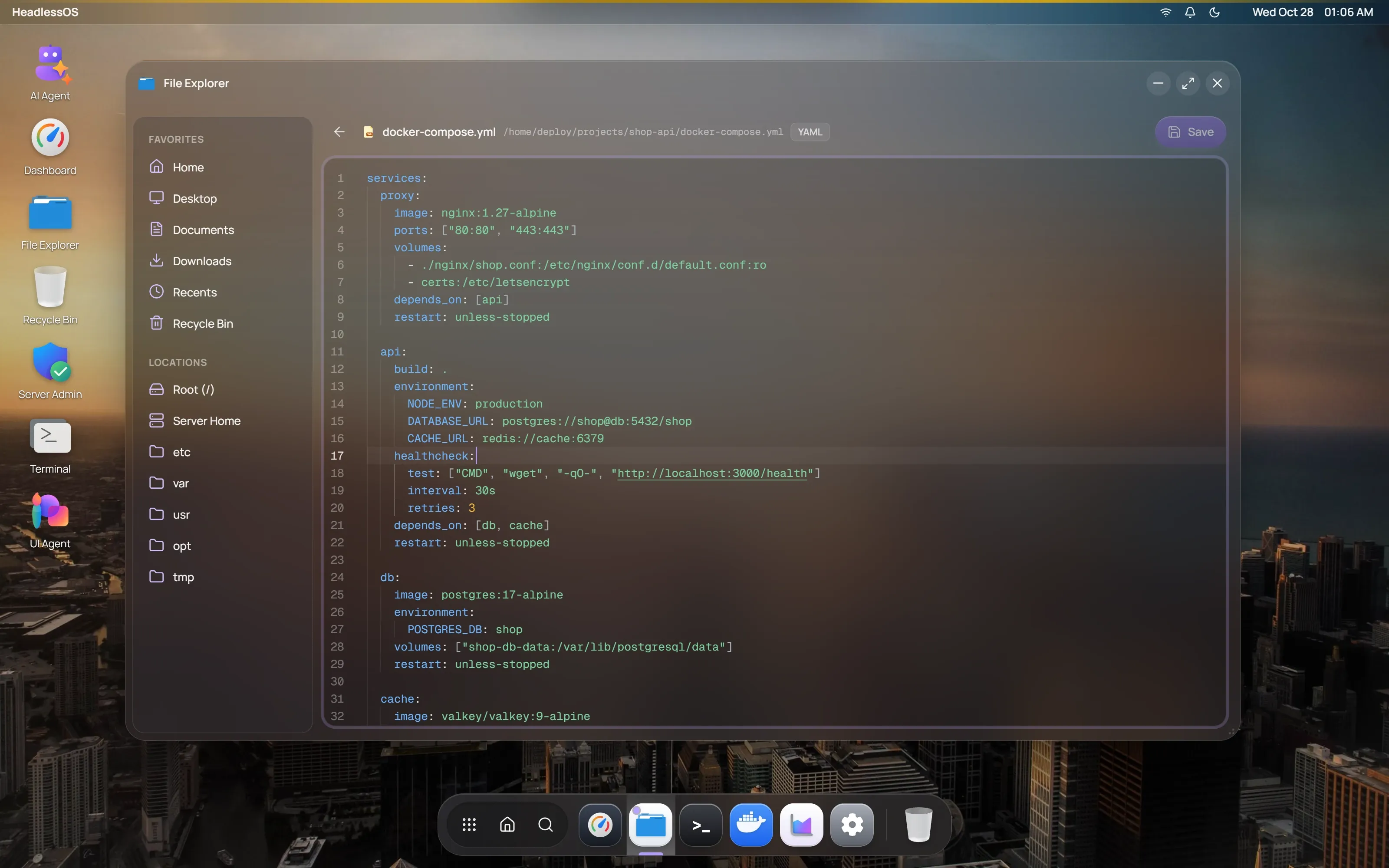
Move around your server
Section titled “Move around your server”The left pane has two groups:
- Favorites follow the user you signed in as. Home opens your own home folder, as the server reports it. Desktop, Documents and Downloads appear only if those folders exist there. Recents opens
/tmp. It isn’t a list of recent files. - Locations are fixed: Root (/), Server Home (
/home), etc, var, usr, opt and tmp.
Use Back, Forward and Up next to the address bar, or click the path and type a new one.
The toolbar switches between Large icons, Medium icons, List and Details. To sort, right-click an empty area and choose Sort by. Split pane view shows two folders side by side.
Edit a file on your server
Section titled “Edit a file on your server”Double-click a file to open it in the code editor, which colours the syntax for that file type. A modified badge appears when you have unsaved changes. Press Ctrl+S or click Save. The arrow at the top left returns to the file list.
Files up to 2 MB open in the editor. Saving is limited to about 1 MB. Files open as UTF-8 text.
Upload files
Section titled “Upload files”Drag files from your computer onto the file list. They go into the folder you’re viewing. Each file can be up to 20 MB. A card shows progress, and the result appears in your notifications.
Copy, move, rename and delete files
Section titled “Copy, move, rename and delete files”Right-click a file or folder for Open, Cut, Copy, Rename, Move to Trash, Delete Permanently and Properties. Properties shows size, dates, permissions and owner. You can’t change them there.
Right-click an empty area for New Folder, New File and Paste. To copy or cut several items, select them with Ctrl-click or Shift-click first. The clipboard belongs to the session, so you can’t paste onto another server.
Click in the file list, then use these keys. On a Mac, use Cmd in place of Ctrl.
| Keys | Action |
|---|---|
| Ctrl+C, Ctrl+X, Ctrl+V | Copy, cut, paste |
| Ctrl+A | Select all |
| Delete | Move to Trash |
| Shift+Delete | Delete permanently |
| F2 | Rename |
| F5 | Refresh |
| Enter | Open |
| Escape | Clear the selection |
Search for files
Section titled “Search for files”Press Ctrl+F or click Search files. Search checks file and folder names in the current folder and up to five levels below it. Type at least two characters. You can use wildcards such as *.log. Hidden files are skipped, and results stop at 200.
Restore a file from the Recycle Bin
Section titled “Restore a file from the Recycle Bin”Move to Trash moves an item to /tmp/.headlessos-trash on the server. Open Recycle Bin from Favorites, the dock or the desktop. Right-click an item for Restore or Delete Permanently, or click Empty Recycle Bin.