Using the desktop
How the HeadlessOS desktop works, including windows, the dock, launcher, menu bar, Quick Settings, notifications, Home hub and keyboard shortcuts.
After you connect to a server, HeadlessOS shows it as a desktop. Every window belongs to that server. To work with several, see Sessions and Fleet.
Open an app
Section titled “Open an app”Double-click a desktop icon, or use the dock, launcher or command palette. Right-click the desktop for more apps. Most apps have one window per server, and opening one again brings it forward.
Docker needs docker on the server, and Services needs systemctl. The other apps need nothing specific, though some Server Admin sections use their own tools.
Move and arrange windows
Section titled “Move and arrange windows”- Move: drag the title bar.
- Resize: drag the bottom-right corner.
- Maximize: double-click the title bar, or drag it to the top edge.
- Snap: drag the title bar to a side for half the screen, or a corner for a quarter.
Right-click the title bar for Minimize, Close and Move to session.
Use the dock
Section titled “Use the dock”The dock holds Launcher, Home hub, Search, pinned apps, other open apps and Recycle Bin.
Click an app to open it or bring it forward. Click the front app to minimize it.
Right-click an app for Pin to Dock or Unpin from Dock, and Close Window. Right-click the dock for Show Desktop.
When a window is maximized
Section titled “When a window is maximized”A maximized window takes the dock’s space, so the dock slides away. To bring it back, do any of these:
- Hover over the thin handle at the edge of the screen, or click it.
- Click Show launcher in the top bar. It’s there only while the dock is away.
- Press Tab until you reach the dock.
The dock floats over the app, and slides away again when you move off it or click somewhere else.
With the dock on the right, a maximized window stops just short of the edge, so the handle stays clear of the window’s scrollbar.
Use the launcher
Section titled “Use the launcher”Click Launcher or press Ctrl+Space. Search apps, or use the quick actions, the app grid, My Apps (views you saved as apps) and Recent.
Lock covers the desktop with a clock and stays connected. It asks for no password: any key leads to Control Center. Switch User and Sign Out both disconnect the server and go to Control Center.
Use Quick Settings
Section titled “Use Quick Settings”The menu bar runs along the top. Click its three status icons to open Quick Settings:
| Control | What it does |
|---|---|
| Server | Connects or disconnects the server |
| Notifications | Turns pop-up notifications on or off |
| Dark | Switches between dark and light |
| Glass, Accent | Change transparency and accent colour |
| Desktop | Minimizes all windows, or restores them |
| Personalize | Opens wallpaper settings |
All settings opens Settings.
Check notifications
Section titled “Check notifications”Click the date and time. A dot means something is unread. The panel lists notifications above a calendar, with Mark all read and Clear all. It currently records File Explorer uploads. The list clears when you reload or quit the app.
Use the Home hub
Section titled “Use the Home hub”Click Home hub in the dock for a full-screen view of one server. Press Escape to close it. Pick another server in the bar at the bottom.
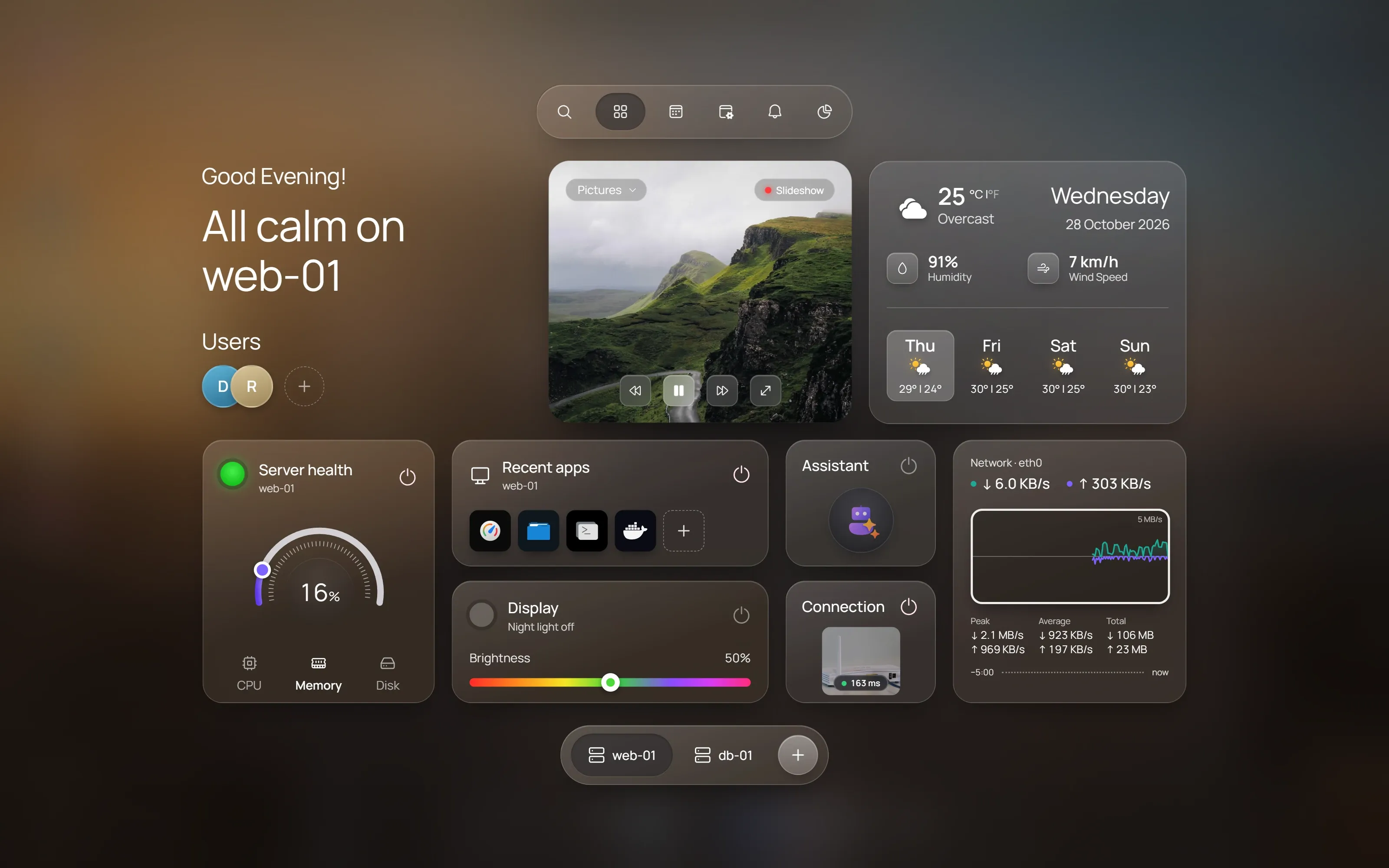
- Server health: a dial for CPU, Memory or Disk. The light turns amber at 75% and red at 90%.
- Recent apps: your last few apps.
- Network traffic: download above the line, upload below, with Peak, Average and Total. Click the time axis for the last 1, 5 or 15 minutes. It records only while the hub is open.
- Weather: set a city in Settings. Forecasts come from Open-Meteo, which receives the city, not your server data.
- Display: brightness and night light for HeadlessOS.
Search with the command palette
Section titled “Search with the command palette”Press Ctrl+K or click Search. Find apps, saved apps, theme actions and Settings pages.
Keyboard shortcuts
Section titled “Keyboard shortcuts”| Keys | Action |
|---|---|
| Ctrl+Space | Launcher |
| Ctrl+K | Command palette |
| Ctrl+D | Show or restore the desktop |
| Alt+F4 | Close the window |
| Ctrl+Up, Ctrl+Down | Maximize; restore or minimize |
| Ctrl+Left, Ctrl+Right | Snap left or right |
| Ctrl+1 to Ctrl+9 | Switch session |
| Ctrl+Tab, Ctrl+Shift+Tab | Next or previous session |
| Ctrl+Shift+H | Hibernate this session |
| Ctrl+Shift+Space | Open Control Center |
On a Mac, Cmd also works unless macOS uses the key. Most shortcuts are ignored while you type in a field or the terminal. A browser may catch some first, such as Ctrl+Tab.