Task Manager
Watch processes, CPU, memory, disk and network live on a Linux server in HeadlessOS Task Manager, plus app history, startup apps, users and services.
Task Manager shows what is running on your server and lets you stop it. It needs no extra tools on the server. It reads ps, top, free and files under /proc over SSH. Processes and Performance update every 2 seconds.
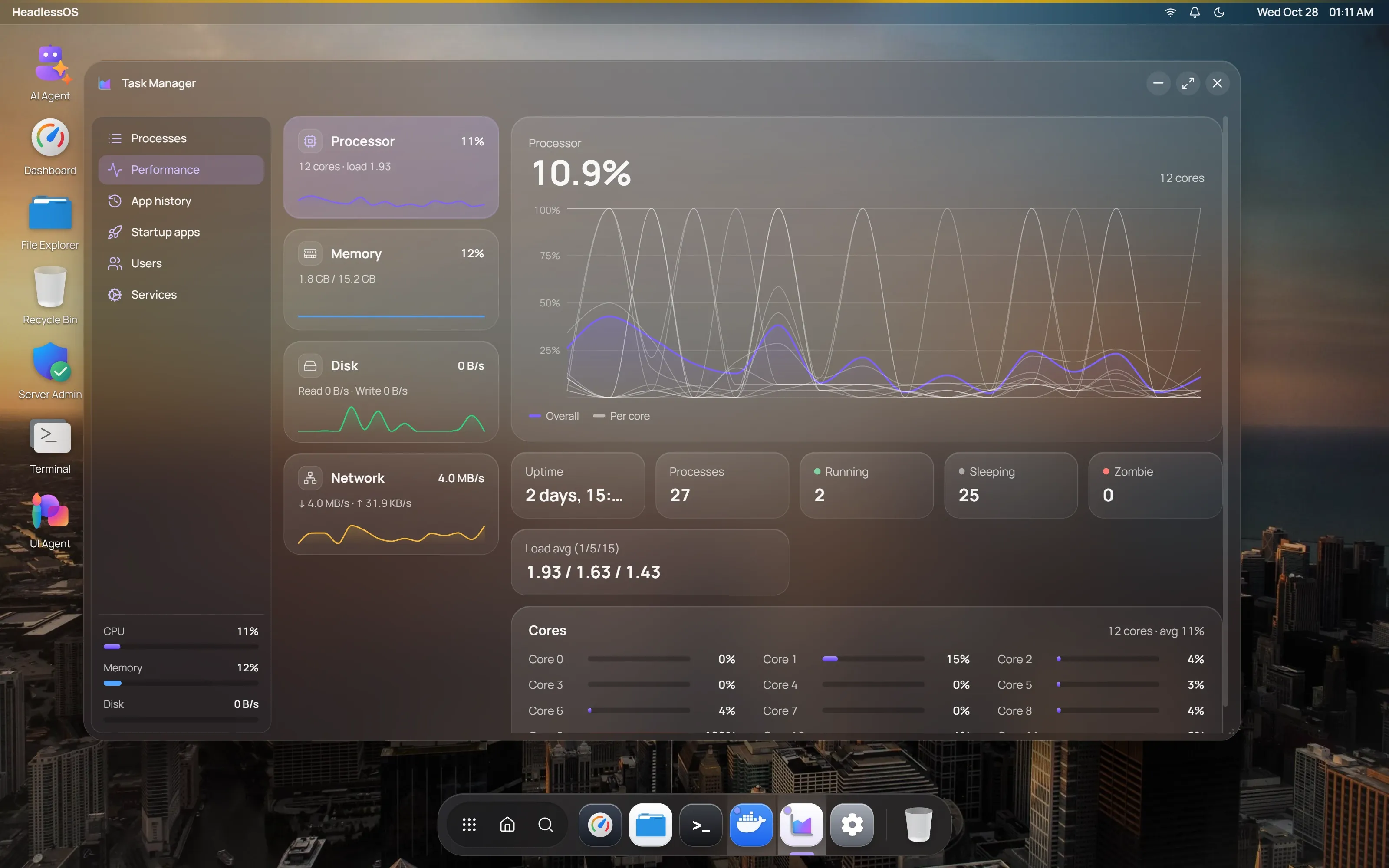
Open it from the dock, or right-click the desktop and choose Task Manager. Meters for CPU, memory and disk stay at the bottom of the sidebar on every page.
Find and stop a process
Section titled “Find and stop a process”Open Processes. Search with Search processes, users or PIDs, or filter with All, Running, Idle and My processes. Click a column heading to sort.
Click a process for a details card with its full command and CPU use over the last 60 seconds. The card has Suspend, which pauses the process, and End task.
Right-click a process for:
- End Task, which asks it to stop (SIGTERM).
- Force Kill (SIGKILL), which stops it at once.
- Copy PID and Copy Command.
These run kill as your SSH user, without sudo. Unless you’re root, you can only stop your own processes.
Check CPU, memory, disk and network use
Section titled “Check CPU, memory, disk and network use”Open Performance and pick Processor, Memory, Disk or Network on the left for a live chart of recent readings.
| Panel | Details |
|---|---|
| Processor | Uptime, process counts, load average, and each core |
| Memory | Total, used, available, free and swap |
| Disk | Read and write rates, per device |
| Network | Receive and send rates, per interface |
See resource use by app
Section titled “See resource use by app”Linux keeps no record of programs that have exited. App history shows totals for the programs running now, grouped by command: CPU time, memory, disk and the number running. Reading other users’ disk figures needs root.
Turn startup apps on or off
Section titled “Turn startup apps on or off”Startup apps lists services that start at boot, plus @reboot lines in cron. It shows each item’s Source, and where available its Impact and Delay at boot. Those two need systemd-analyze.
Use the switch to enable or disable an item. HeadlessOS asks first and then runs sudo systemctl, or update-rc.d on servers without systemd. Disabling a service doesn’t stop it now. It just won’t start at the next boot.
You can’t switch @reboot lines here. Change them in Server Admin under Cron jobs.
See who is using the server
Section titled “See who is using the server”On the Users page, each account with running processes or a login session gets a card. It shows CPU, memory, the process count and where the account is logged in. A badge marks it Active, Idle or Service.
Start or stop a service
Section titled “Start or stop a service”The Services page lists services with their PID, status and startup type. Filter with All, Running and Stopped, or search by name.
Start and Stop ask you to confirm, then run with sudo. Stopping ssh shows an extra warning, because it can cut your connection. This page also works on servers without systemd. For more controls, use the Services app.