Settings
Where HeadlessOS settings live. Compare Global Settings with the Settings app, set a wallpaper per session, and see what each Settings page does.
HeadlessOS has two places for settings. Most of what you need is in the Settings app.
| Global Settings | Settings app | |
|---|---|---|
| Where | Control Center, no server needed | On the desktop |
| Open it with | The Global Settings tab | Launcher, dock, or All settings in Quick Settings |
| Holds | Default accent colour, toast notifications, session import, log file | Everything else on this page |
A toast is a short pop-up message. Default accent colour and the toast options are the same settings in both places, so a change in one shows in the other.
Preferences are stored in the app on your computer, so a browser and the desktop app each keep their own. Saved servers, sessions and API keys are in ~/.headlessos/.
Set a different wallpaper for each session
Section titled “Set a different wallpaper for each session”Wallpaper is the one setting you can choose per session.
- Open Settings and go to Wallpaper.
- Under Apply wallpaper to, choose This session or All sessions.
- Pick a wallpaper.
This session is selected by default and overrides the global choice. Click Reset to go back to it. If Accent colour is Match wallpaper, the accent follows the session’s wallpaper too.
Everything else applies to all sessions, including the theme, clock, notifications and AI provider.
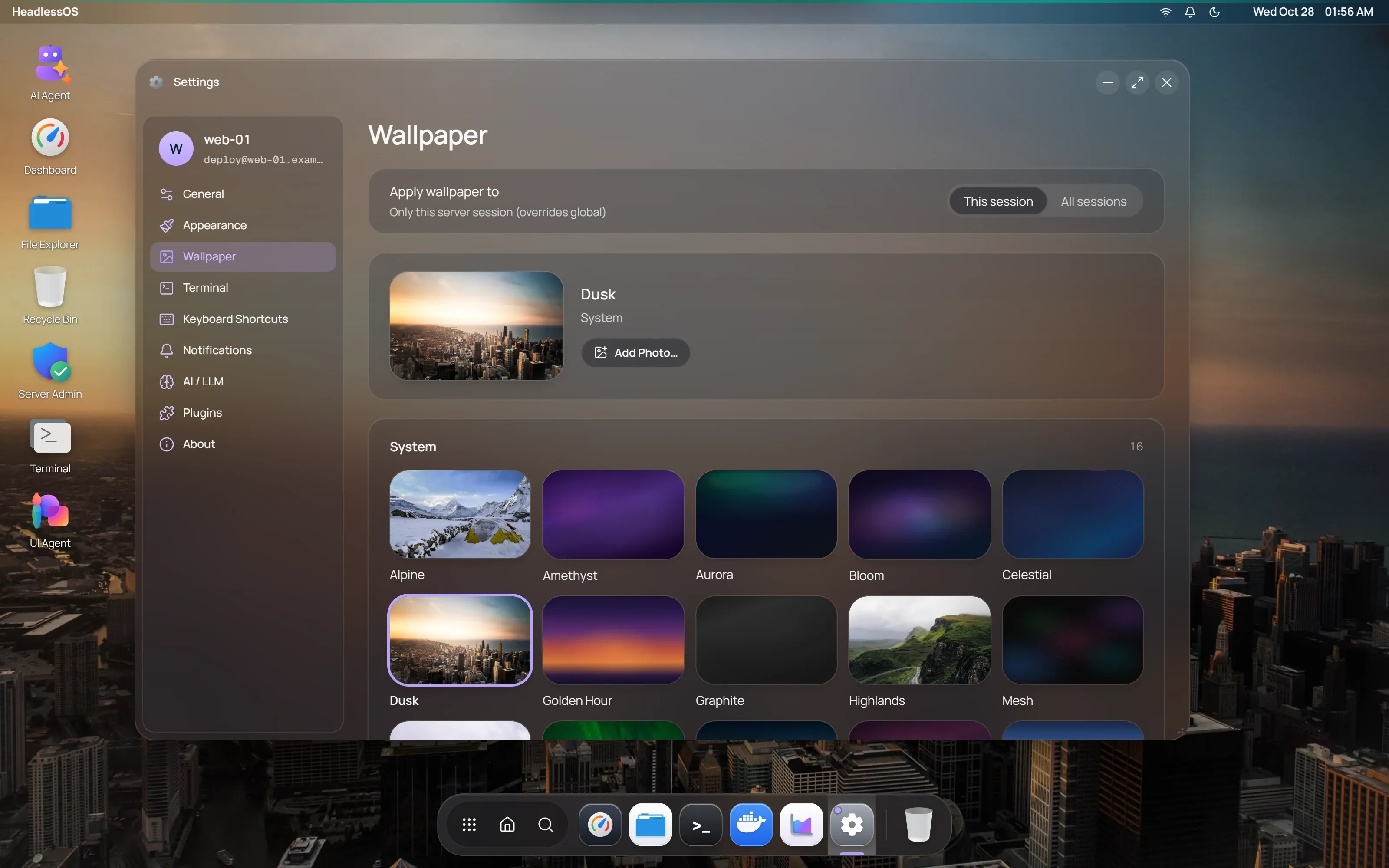
The Settings pages
Section titled “The Settings pages”| Page | What you can change |
|---|---|
| General | Clock Format, Auto-Refresh Interval, Auto-Hibernate Inactive Sessions, Privacy Screen, and the city and units for Weather |
| Appearance | Theme (Light, Dark or Auto), Accent colour, Glass strength, Transparency effects, Dock Position, Dock Icons, Desktop Icon Size |
| Wallpaper | Built-in and System wallpapers, and your own with Add Photo…, up to 20 MB |
| Terminal | See Terminal |
| Keyboard Shortcuts | A reference list. See Using the desktop |
| Notifications | Show Notifications, Position, and Data & Storage |
| AI / LLM | Your provider, model and key. See AI setup |
| About | Version, and Open log in the desktop app |
Auto-refresh and the Privacy Screen
Section titled “Auto-refresh and the Privacy Screen”Auto-Refresh Interval defaults to 30 seconds. It sets how often slower data updates in Dashboard, Docker, Services and Fleet. Choose Off to refresh by hand. Task Manager and the Dashboard’s CPU and network figures update every 2 seconds whatever you choose.
Privacy Screen shows the Home hub over the desktop after a period with no input. Press any key to return. It hides the screen, but it isn’t a lock.
Reset or clear settings
Section titled “Reset or clear settings”Both are under Notifications, in Data & Storage:
- Clear Cached Data removes everything HeadlessOS keeps in browser storage, including your preferences. Saved servers and keys in
~/.headlessos/stay. - Reset All Settings restores default preferences and sets the theme to Dark.
Open the log file
Section titled “Open the log file”In the desktop app, open Global Settings and click Open log under Log file. This also works from About in the Settings app. The log stays on your computer. If something goes wrong, see Troubleshooting.